Settings reference
Every setting in Py Editor, with its options and its default.
Py Editor keeps two sets of settings. Application Settings (Py Editor → Settings…, ⌘,, or the gear in the toolbar) apply to the app on this Mac. Project Settings (File → Project Settings…, ⌘;, or the wrench in the left rail) apply to one project and are stored inside the project folder, so they travel with it.
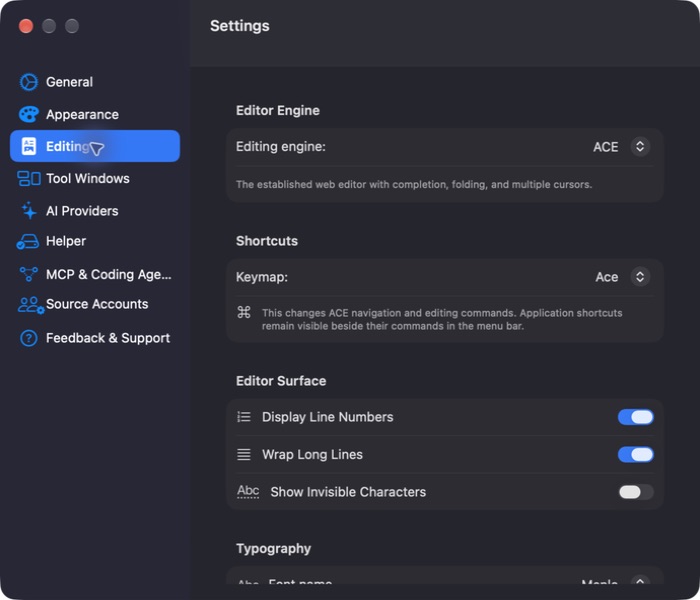 Open the screenshot to view it at full size.
Application Settings
The sidebar lists General, Appearance, Editing, Tool Windows, AI Providers, Helper, MCP & Coding Agents, Source Accounts and Feedback & Support.
General
| Control | Options | Default | Notes |
|---|---|---|---|
| Start at login | On, off | Off | Starts Py Editor when you log in |
| Learn → Open | — | — | Opens the Python book |
A Settings Scope note reminds you that the interpreter, the analyzer, dependencies and run configurations belong to each project.
Appearance
| Control | Options | Default |
|---|---|---|
| Application Theme | Obsidian, Midnight, Python Blue, Warm Graphite | Midnight |
Each theme brings its own source palette. Midnight uses the dark syntax palette you pick in Editing.
Editing
| Section | Control | Options | Default |
|---|---|---|---|
| Editor Engine | Editing engine | ACE, Native (TextKit) | ACE |
| Shortcuts | Keymap | Ace, Vim, Emacs, Sublime, VSCode | Ace |
| Editor Surface | Display Line Numbers | On, off | On |
| Wrap Long Lines | On, off | On | |
| Show Invisible Characters | On, off | Off | |
| Typography | Font name | System, AndaleMono, Menlo | Menlo |
| Font size | 9, 10, 11, 12, 13, 14, 15, 21, 25 | 14 | |
| Syntax Palette | Light theme | Chrome, Clouds (Light), Crimson, Dawn, Dreamweaver, Eclipse, GitHub, IPlastic, Solarized (Light), TextMate, Tomorrow, Xcode, Kuroir, KatzenMilch, SQL Server | Chrome |
| Dark mode | Ambiance, Chaos, Clouds (Dark), Dracula, Cobalt, GruvBox, Matrix, Idle Fingers, Kr, Merbivore, Merbivore (Soft), Mono Industrial, Monokai, Nord, One, Pastel, Solarized (Dark), Terminal, Tomorrow (Night), Tomorrow (Blue), Tomorrow (Bright), Tomorrow (80s), Twilight, Vibrant InK | Monokai | |
| Document Saving | Autosave When Switching Files | On, off | On |
Keymap appears only while the engine is ACE, and changes ACE navigation and editing commands; the menu shortcuts stay the same. Font name and Font size apply to the Native (TextKit) engine. Switching engines saves the open document first. With Autosave When Switching Files off, Py Editor asks before you leave or close an edited file.
Tool Windows
Checkboxes that show or hide rail buttons in every project window. All are on by default; Restore Defaults brings back any you hid.
| Section | Checkboxes |
|---|---|
| Left Sidebar | Project (always on), Find, Commit, Learn, Structure, Bookmarks |
| Results Dock | Execution, Tests, Coverage, Profiler, Terminal, Problems, Packages, Services, Ollama, Git log |
| Right Sidebar | AI Assistant, which is part of every window and can only be collapsed there |
Execution covers Run, Debug and the Python Console together.
AI Providers
| Control | Options | Default | Notes |
|---|---|---|---|
| Provider | Ollama, Apple Intelligence, Gemini, Anthropic | Ollama | |
| API key | — | Empty | Gemini and Anthropic only. Stored in the macOS Keychain |
| Save Key / Replace Key | — | — | Available once the field has text |
| Remove Key | — | — | Shown once a key is stored |
| Create API Key | — | — | Opens the provider's key page |
| Open Ollama Panel / Install Ollama | — | — | Ollama only |
| Test Connection | — | — | Reports how many supported models the provider offers |
Helper
| Section | Control | Notes |
|---|---|---|
| Connection | Refresh | Re-checks whether Helper is connected and which version is running |
| Installation | Download Helper, Download Update, Download Again, Open Installer Again | Shown according to what is installed. Progress appears while the signed installer downloads |
| What Helper Adds | — | Lists project virtual environments, external interpreters and the Terminal, and GitHub operations |
| Technical Status | — | The XPC channel, service, process, active commands, terminal sessions, Git channel and output limit, while Helper is connected |
| Restart Helper… | Restarts the background service | |
| Remove Helper | Uninstall… | Removes Helper from this Mac |
Py Editor keeps working without Helper, using its embedded Python runtime.
MCP & Coding Agents
| Control | Notes |
|---|---|
| Status | Says whether the MCP server is enabled, disabled or not installed |
| MCP Actions menu | Refresh Status, Enable MCP, Disable MCP… |
| Transport and Executable | The transport in use and the path to the MCP binary, which you can reveal in the Finder |
| Copy Codex command | Copies the command that registers Py Editor with Codex |
| Copy Claude command | Copies the command that registers Py Editor with Claude |
| Download MCP-capable Helper | Shown when the MCP binary is not installed |
MCP needs Helper, and the copy buttons work once MCP is installed and enabled.
Source Accounts
Needs Helper and the GitHub CLI (gh).
| Section | Control | Notes |
|---|---|---|
| Git Commit Identity | Name, Email, Save Identity | Used for new commits made on this Mac |
| GitHub Accounts | Sign in with GitHub | Signs in through your browser |
| Use | Makes another signed-in account active | |
| Sign Out | Signs the account out | |
| Refresh | Re-reads the account list |
When a requirement is missing, the page offers Download Helper, Get Latest Helper or GitHub CLI Website instead.
Feedback & Support
| Control | Notes |
|---|---|
| Open Feedback… | Opens the feedback window |
| Remove My Usage Data | Deletes your analytics and feedback data and turns analytics off |
| Open Support Website | Opens the support page in your browser |
Project Settings
A sheet with four tabs: Interpreter, Run, Tasks and Editor. Cancel (Esc) discards your edits; Save (↩) writes them to the project. Save stays dimmed while a field is invalid.
Interpreter
| Control | Options | Default | Notes |
|---|---|---|---|
| Mode | Project .venv, Embedded, Custom | Embedded | Project .venv needs Helper |
| Custom Path + Choose | — | Empty | Active only in Custom mode. Type the full path to a Python executable or pick it in Choose Python Interpreter. Needs Helper, which checks the interpreter and reports the result in Status |
| Status, Python, Executable, Version check, .venv, .venv path | — | — | Read-only. The executable row can be revealed in the Finder, and its context menu offers Copy Full Path |
| Get Helper, Refresh | — | — | Get Helper appears only while Helper is missing |
Run
The list on the left holds the run configurations. + adds one, the middle button duplicates the selected one and − removes it; a row's context menu offers Rename, Duplicate and Delete. The selected configuration becomes the active one after Save.
| Control | Default | Notes |
|---|---|---|
| Configuration Name | Python for a new configuration | Required |
| Used by | — | Read-only: Run, Debug and the Python Console all use this configuration |
| Script + Choose… | Empty | Empty means the file open in the editor |
| Run Working Directory + Choose | Empty | Empty means the project folder |
| Run Arguments | Empty | One line, quoted like a shell command |
| Run Environment | Empty | One KEY=value per line |
| Terminal Working Directory + Choose | The project folder | Where the Terminal opens |
Each field reports its own state underneath, such as Ready, Missing, Not a Python script, N argument(s) or Invalid.
Tasks
Extra arguments for the project tasks. An empty field uses the default arguments shown as the placeholder.
| Task | Runs | Default arguments |
|---|---|---|
| Build | compileall |
src tests |
| Test | pytest |
tests -q |
| Ruff | ruff check |
src tests |
| Mypy | mypy |
src --strict |
| Analyze | pyright --outputjson |
. |
Editor
| Control | Options | Default | Notes |
|---|---|---|---|
| Enable language server for this project | On, off | On | Powers completion, definitions, hover, references and rename |
| Status, Analysis Python, Pyright, On Save, Definition, Hover, References, Rename | — | — | Read-only |
| Install Pyright / Use Project .venv & Install Pyright | — | — | Needs Helper |
The language server needs Helper for any interpreter other than Embedded.