Ask the AI Assistant about your code
Get an explanation of the file you are looking at without leaving the workspace.
The Assistant sends the selected file's content and the conversation so far, not only the words you type. Do not open a file containing passwords, tokens or private data before asking a cloud provider about it.
Choose a provider
Py Editor talks to four providers: Ollama (models running on this Mac), Apple Intelligence (the on-device model provided by macOS), Gemini and Anthropic (your own API key, sent to that vendor).
Apple Intelligence needs macOS 26 or later and an Apple Intelligence model on this Mac; the provider reports it when either is missing.
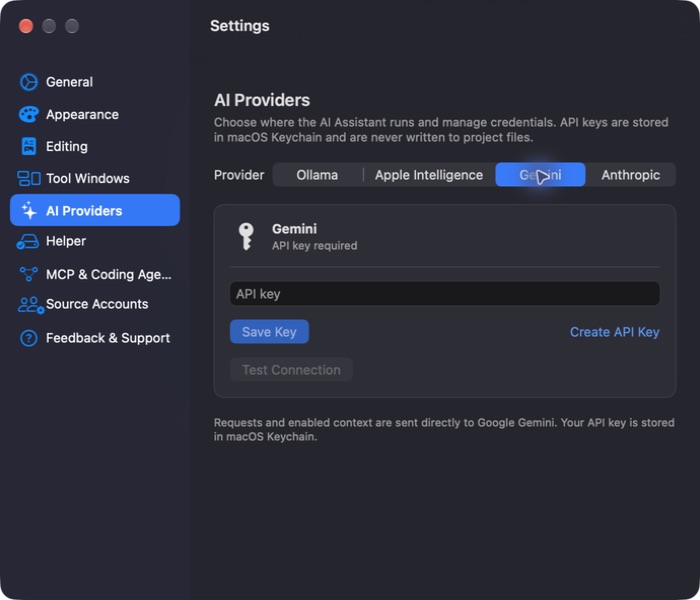 Open the screenshot to view it at full size.
- Open Application Settings → AI Providers.
- Select the provider.
- For Gemini or Anthropic, enter your key in API key and click Save Key. The key is stored in the macOS Keychain. Create API Key opens the vendor's page.
- Click Test Connection and read the result.
You can also switch provider from the provider chip at the top of the Assistant.
Choose a local model
- Click Ollama, the CPU button on the right rail.
- Check the connection status above the model list. If Ollama is not running, the panel offers Download Ollama and Check Again.
- Select Installed and choose a model.
- Read its size and details.
- Click Use in AI Assistant.
- Check the provider and model shown at the top of AI Assistant.
Available lists models that are not on this Mac yet, with Search models not installed to filter the catalog. The catalog itself is fetched from Ollama, so browsing it needs a network connection even though the conversations are local.
Ask about the selected file
Click AI Assistant on the right rail, or press Option-Command-A.
Check that the mode chip says Chat and that the filename under the question field is the file you mean.
Type your question in Ask about Python or this project, for example:
Explain how this script splits its data into training, validation and test sets. Give three short points.
Click Send, or press Command-Return.
Read the answer when the status returns to Connected.
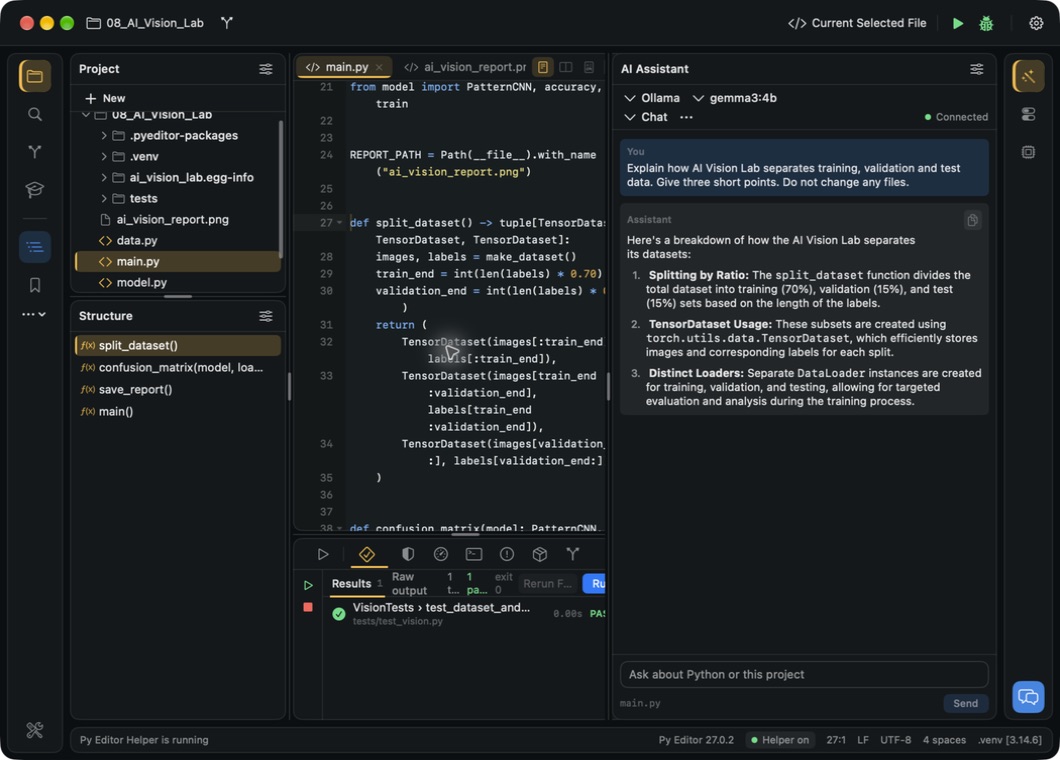 Open the screenshot to view it at full size.
Treat an answer as something to check. Compare it with the source, and run the project or its tests before relying on it.
Change which file a question is about
The filename below the question field follows your editor selection; there is no attachment picker.
- Select another file in the editor, leaving the Assistant open.
- Check that the filename below the question field changes with it.
- Ask your next question.
The earlier exchanges stay visible, so keep a new question specific when the conversation already covers another file. The conversation is also kept when you close the panel and open it again.
Stop a reply
Click Stop while the Assistant is answering. The status returns to Connected and you can send a different question.
Keep a copy of an answer
- Click Copy response, the overlapping-pages button on the answer's card.
- Look for the short Response copied confirmation.
- Paste the text where you want it.
Copying an answer does not change any file. An answer that describes an edit is not an applied edit.