Preview Markdown, HTML, SVG and notebooks
Read a formatted document beside its source, or on its own, without leaving Py Editor.
Which files can be previewed
| File | What the preview shows |
|---|---|
.md, .markdown |
Headings, paragraphs, lists and inline code |
.html, .htm |
The rendered page, with its neighbouring CSS, JavaScript and images |
.svg |
The illustration |
.ipynb |
A read-only notebook reader |
The three view-mode buttons above the editor are unavailable for other file types. An image opens directly in the editor area as a read-only view, described in Create, rename, move and save files.
Show the source and the preview together
- Open the document from the Project file tree.
- Click Editor and preview, the split-rectangle button above the editor.
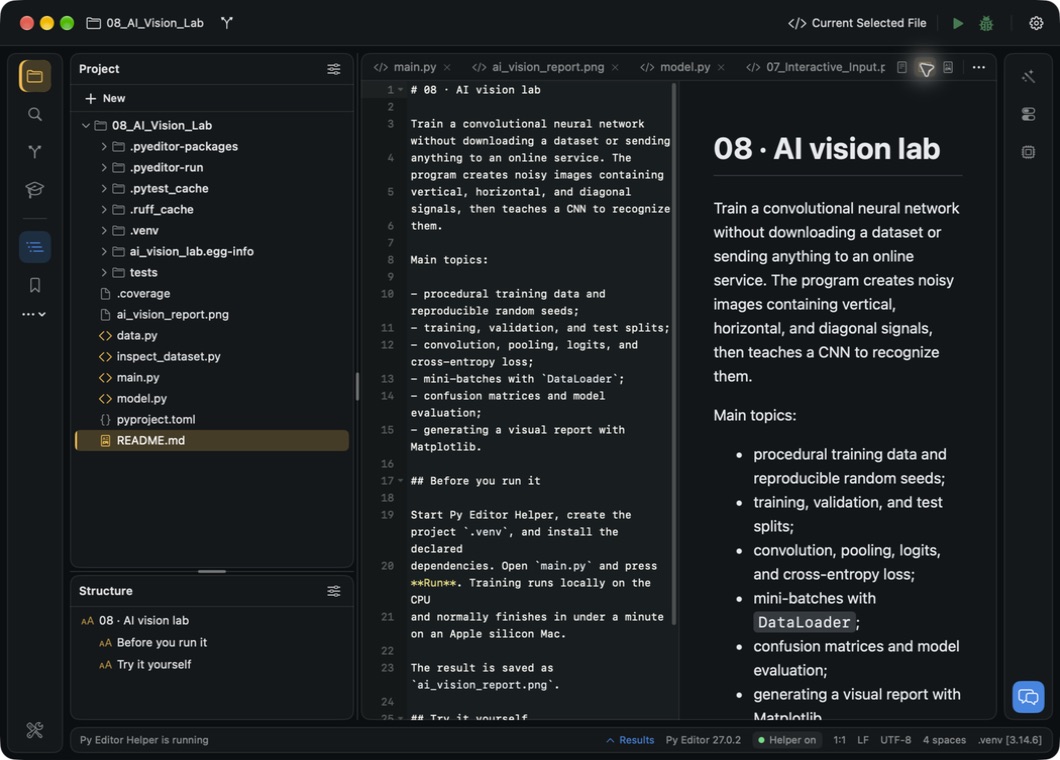 Open the screenshot to view it at full size.
The source is on the left and the formatted document on the right. This splits the editor area; the left and right panels keep their own content.
Read only the preview
- Click Preview only, the rich-document button above the editor.
- Read the document using the full editor area.
- Click Editor only to return to the source text.
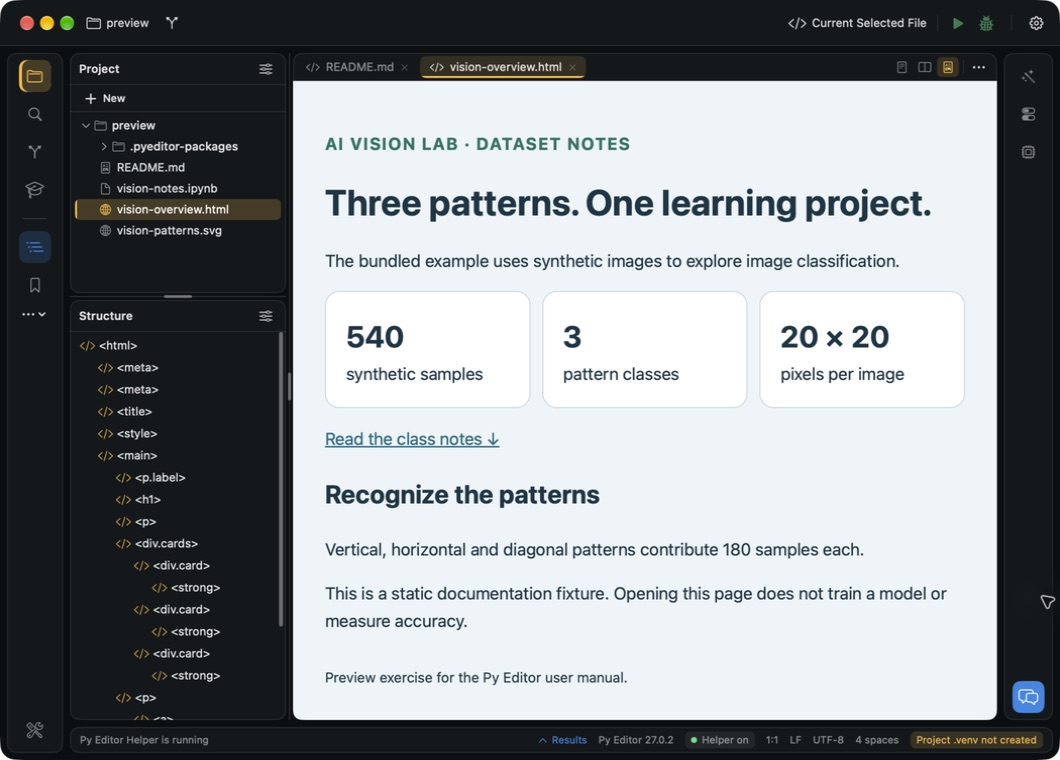 Open the screenshot to view it at full size.
The Tab options menu, the ellipsis beside these buttons, offers the same three modes. View → Tool Windows → Browse → HTML / Markdown Preview also switches the selected tab to preview mode.
See an edit in the preview
- Click Editor and preview.
- Change the text on the source side.
- Read the updated preview on the right.
The preview follows your typing. The file is still marked Modified, not saved until you press Command-S, so a changed preview does not mean a changed file.
Keep a different view mode per file
The view mode belongs to the file. A Markdown file left in Preview only stays in that mode when you return to it, while a Python file in the same window keeps its source view.
Read a Jupyter notebook
- Select the
.ipynbfile in Project. - Click Preview only.
- Wait for the notebook to finish loading.
- Read the Markdown and code cells.
- Choose Editor and preview to see the notebook's JSON source beside the reader.
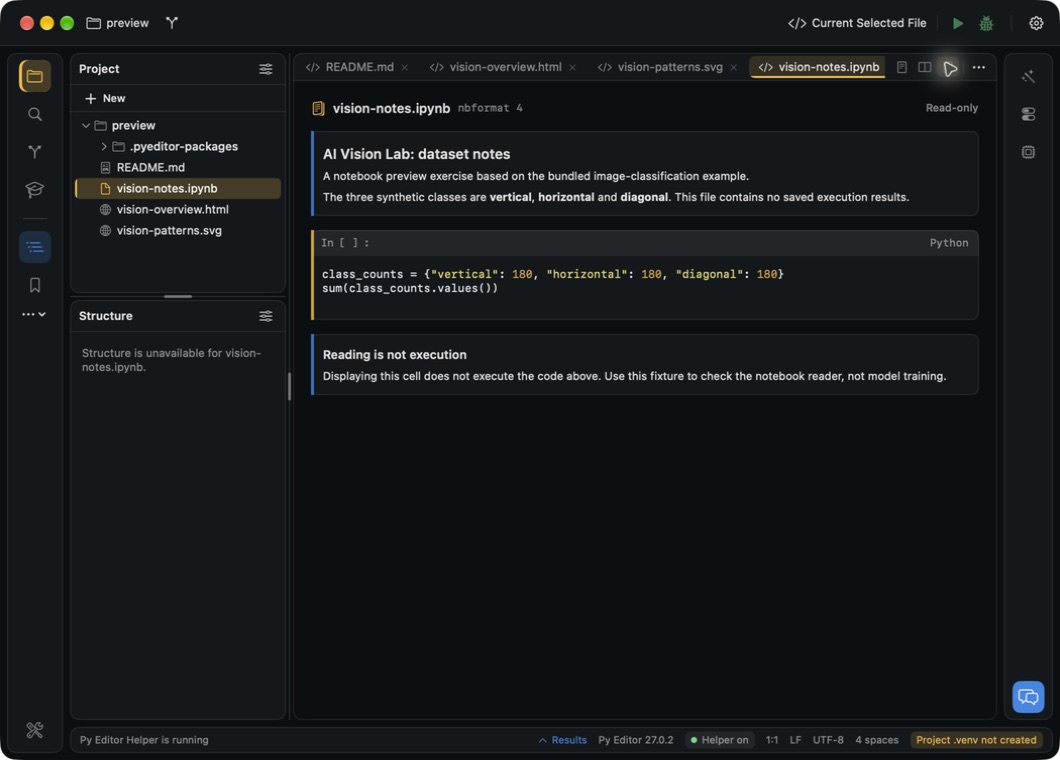 Open the screenshot to view it at full size.
The header says Read-only and names the notebook format. Opening a notebook does not start a kernel and does not run its cells.
Read results stored in a notebook
Open the notebook in Preview only and read each code cell together with the output below it.
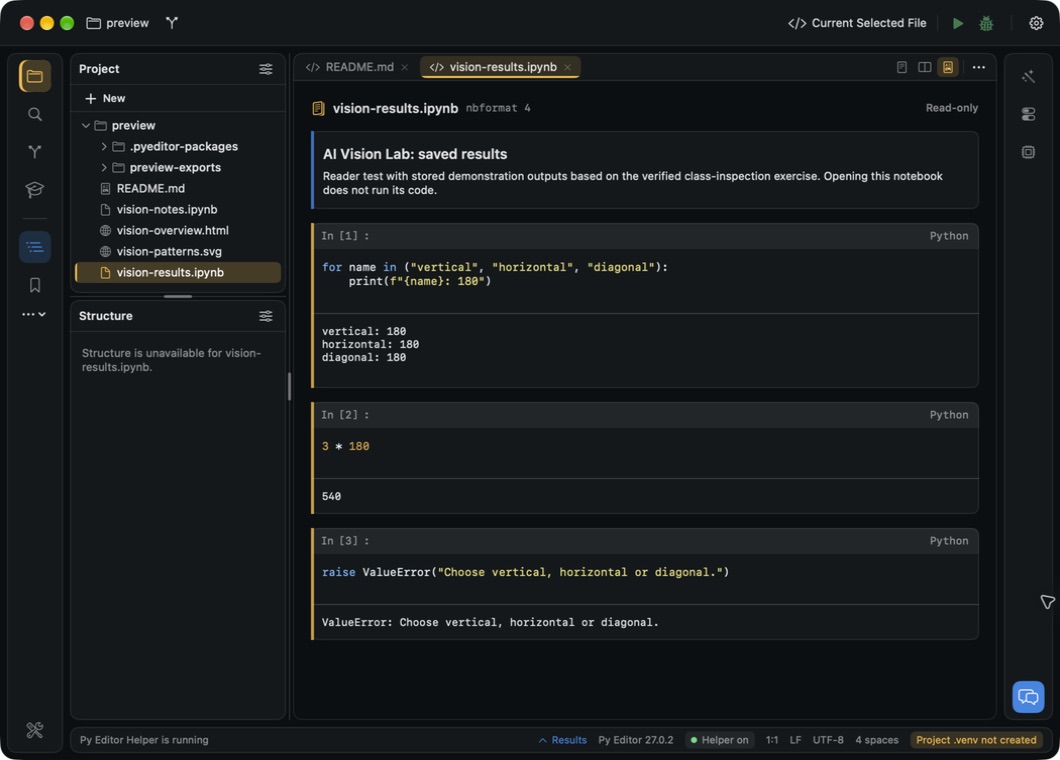 Open the screenshot to view it at full size.
Execution numbers such as In [1] and the outputs beneath them belong to the saved document. They show what the notebook's author recorded, not a result produced now.
Fix a notebook that will not preview
Notebook preview unavailable means the file's structure is not a valid notebook, or the file is too large.
- Keep a copy of the file, or ask its author for a corrected notebook.
- Save the valid version at the same location, resolving any unsaved editor changes first.
- Choose File → Close Tab for that document.
- Reopen it from Project and wait for the preview.
The reader returns once a valid notebook is in place. Notebook previews are limited to files of 20 MB or less.
If a newly added file is missing from the tree, Control-click the project root and choose Reload from Disk.