Twelve projects to open
A greeting, a guessing game, a quiz, an expense tracker, grade analysis, an energy dashboard, a document search engine and more. Seven run with the Python already in the app.
Explore the example projects →Free Python Editor for Mac
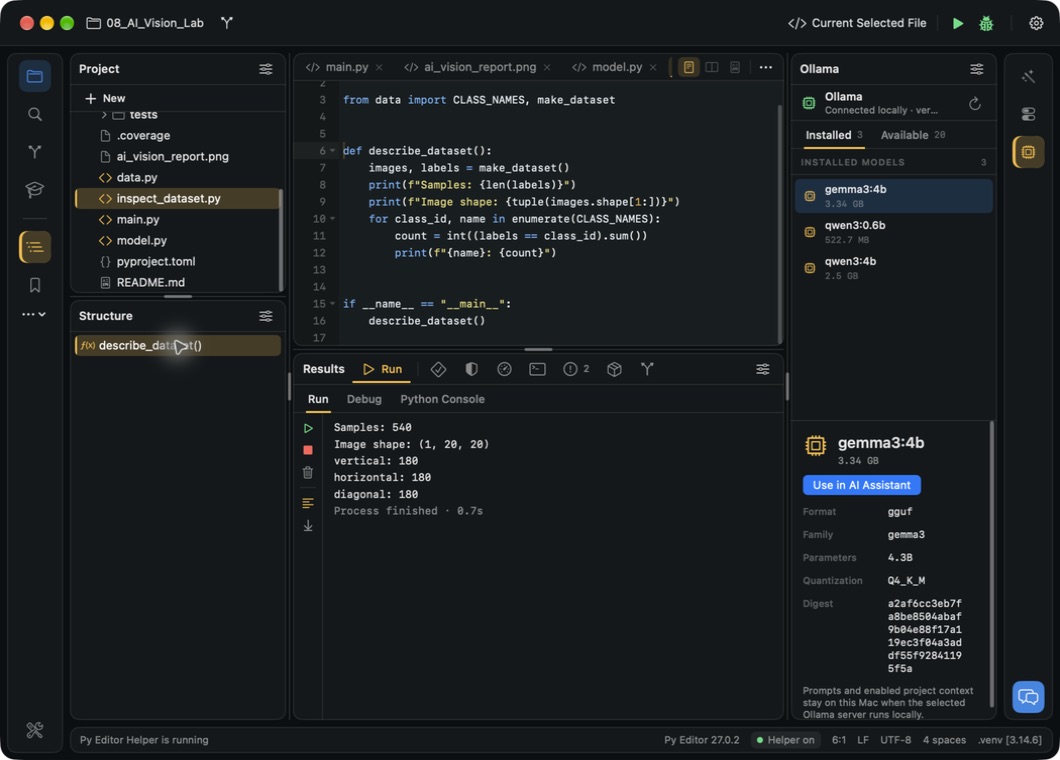
The free download brings twelve worked projects, a six-lesson Python course and an assistant you can point at a local or a cloud model. Python is inside, so your first script runs on first launch. Git, the Terminal, the Python Console, debugging, packages and the profiler arrive with the free Helper, installed from inside the app.
Free. All app features unlocked. No app subscription.
Included in your download
A greeting, a guessing game, a quiz, an expense tracker, grade analysis, an energy dashboard, a document search engine and more. Seven run with the Python already in the app.
Explore the example projects →Six lessons, eight example scripts, seven short guides and a 31-chapter Python book, in the Learn panel beside your code.
See the learning material →Ask about the open file with a local Ollama model, Apple Intelligence on macOS 26 or later, or your own Gemini or Anthropic key.
Explore AI assistance →Search files, navigate source structure, use multiple selections and compare earlier saves in local history.
Explore editing →Run scripts and read the output. With the free Helper: the Python Console, Terminal, tests, coverage and profiling.
Explore execution tools →Review local differences, make commits and read history. Git needs the free Helper.
Explore project tools →Examples worth exploring
Mac Desktop Studio builds Focus Studio, a task list and 25-minute timer, with PySide6. Read the code, add a task, then follow what happens from the button to the change on screen.
This example needs the free Helper and a project environment for PySide6. Follow the setup guide.
Explore the example projects →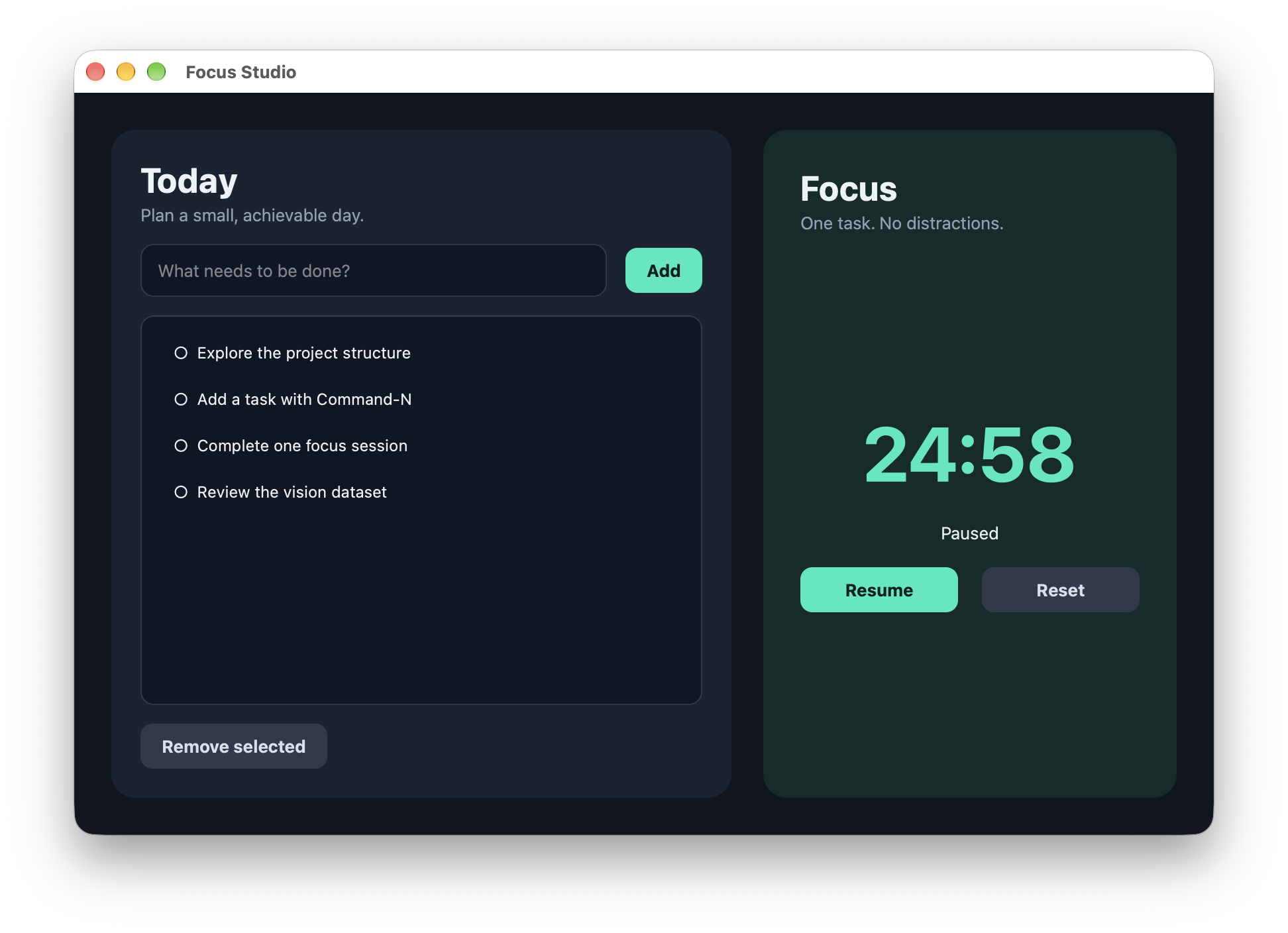
Get started
Open the ZIP and move Py Editor into Applications.
Open a folder, create a project or pick a bundled example.
Follow any project setup prompts, then run the script and inspect the output.
A few useful details
No. The free Mac app unlocks all app features with no app subscription. AI providers and other external services may charge separately.
The free Mac app supports Apple silicon and Intel Macs with macOS 13 or later.
No. Python is included, so scripts run on first launch. Git, the Terminal, the Python Console, debugging, packages and the profiler need the free Helper, and four of the twelve bundled projects also need a project environment; the setup guide walks you through both.
Yes. The store app has its own features and purchase options. The two Mac apps replace one another when installed, so save and back up your projects before switching. Open the Mac App Store listing.
Check for updates inside Py Editor and follow the installation prompts.
Open the user manual for illustrated instructions, examples and troubleshooting.
Free. All app features unlocked. No app subscription.